The Dive Kit app

Dive Kit is a decompression planner for technical divers, and a set of dive tools for every diver, on iPhone, iPad and Android. This is the whole app, grouped by the jobs of a dive day. The Deco Planner is the one paid feature; everything else is free, with no account and no ads.

Nine of the tools also run in your browser. All calculators

Plan the dive

Deco Planner

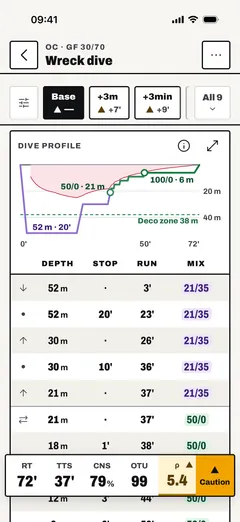
Bühlmann ZH-L16C with gradient factors, for open-circuit and CCR dives. Build a dive from levels and gases, and Dive Kit returns the schedule, the gas for each cylinder, oxygen exposure and gas density, with the lost-gas, deeper and longer contingencies worked out at the same time. It is the one paid feature: the first month is free.
  1. Deco Planner in the Dive Kit app, screen 1
    One plan on one screen: the scenario tabs such as +3 m and +3 min across the top, then the dive profile, the stop table and a bar with runtime, time to surface, CNS, OTU and gas density.
  2. Deco Planner in the Dive Kit app, screen 2
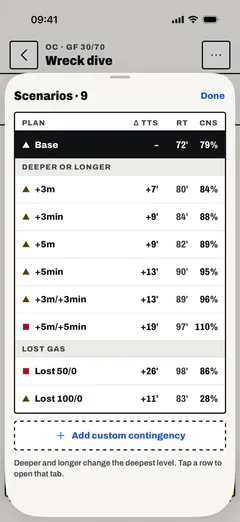
    All 9 opens every scenario in one table, grouped as deeper or longer and lost gas, with the change in time to surface, the runtime and the CNS of each. Add your own from the bottom of the list.
  3. Deco Planner in the Dive Kit app, screen 3
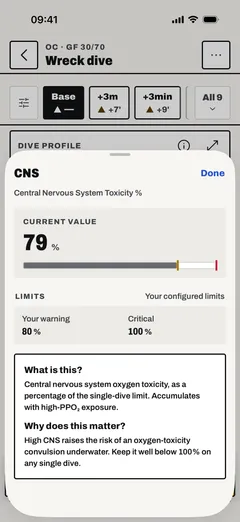
    Tap a number in the summary bar for what it means. Here CNS: the current value against your warning and critical limits, and why it matters.
  4. Deco Planner in the Dive Kit app, screen 4
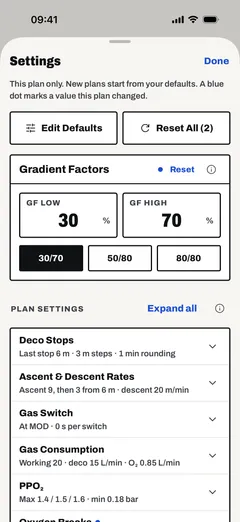
    Settings for this plan only: gradient factors with presets, deco stops, ascent and descent rates, gas switches, gas consumption and ppO₂ limits. A blue dot marks a value changed from your defaults.
The Deco Planner → Guide: Deco Planner

Sharing deco plans

Send a plan as a link or show it as a QR code. The plan travels inside the link, so a buddy opens it in a browser or in the app with no account. For the water, export a slate as a PDF, a PNG or plain text.

Guide: Sharing deco plans

Gas Usage

Pick Single Tank or Twin Set, set your cylinder volume and start pressure (or load from a saved profile), then add depth + time + RMV steps to your dive profile. Dive Kit shows consumed and remaining gas after each step, with a final Summary card showing total used, remaining bar, and percent reserve.

  1. Gas Usage in the Dive Kit app, screen 1
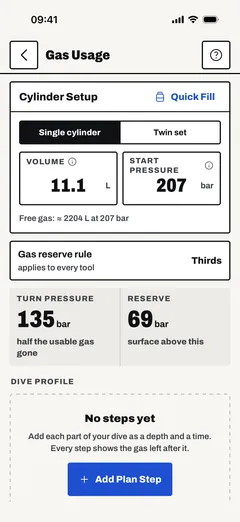
    Pick a single cylinder or a twin set. Turn pressure, reserve and free gas show before you add the first step.
  2. Gas Usage in the Dive Kit app, screen 2
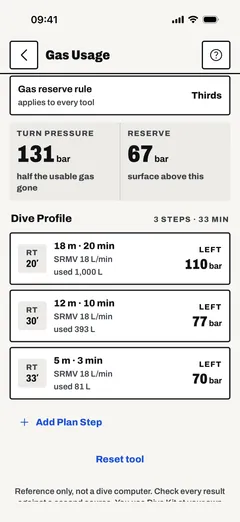
    Add the dive in steps of depth and time. Each step shows the gas it uses, and the summary shows what is consumed and the pressure left.

Free web calculator Guide: Gas Usage

SAC/RMV

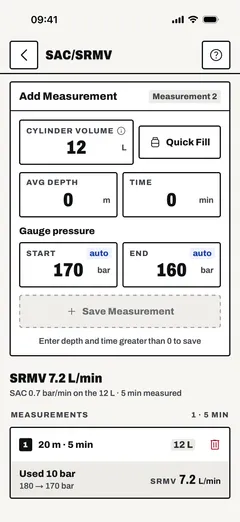
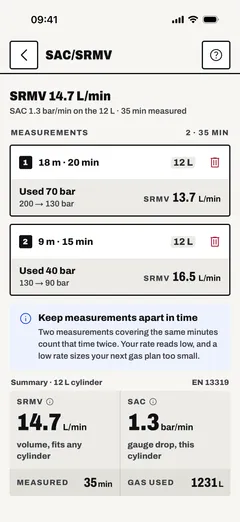
Pick Single Tank or Twin Set, set your cylinder volume, then save measurements as you collect them, depth, time, start pressure, end pressure. Dive Kit normalizes each one to surface pressure and shows your SAC (bar/min) and RMV (L/min) summary, for use in your gas planning.

  1. SAC/RMV in the Dive Kit app, screen 1
    Add a measurement from a real dive: cylinder volume, average depth, time, and the gauge pressure at the start and end. Saved measurements list under the form.
  2. SAC/RMV in the Dive Kit app, screen 2
    Save several measurements, one per slice of the dive. The summary combines them into one SAC in bar/min and one SRMV in L/min.

Free web calculator Guide: SAC/RMV

Gas

Best Mix

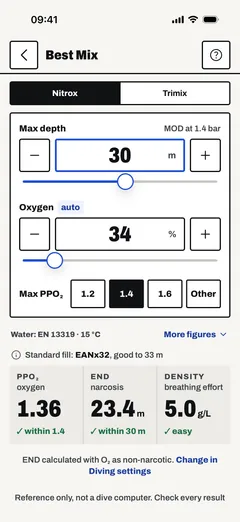
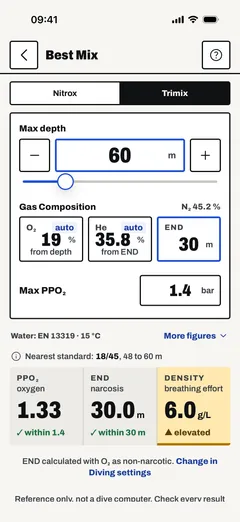
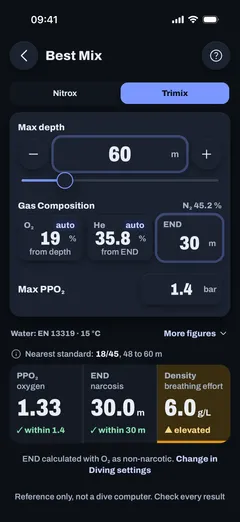
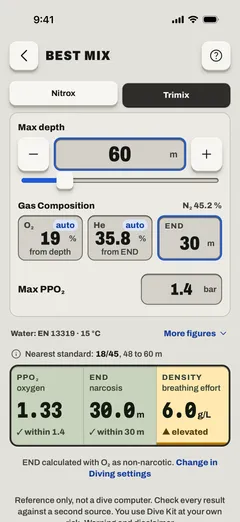
Pick Nitrox or Trimix mode and set the target depth and PPO₂ limit. Dive Kit returns the richest mix within that limit, with its MOD, equivalent air depth, equivalent narcotic depth and gas density. Color-coded warnings flag oxygen toxicity, narcosis and high gas density before you choose the mix.

  1. Best Mix in the Dive Kit app, screen 1
    Nitrox: set the depth and your ppO₂ limit, and the app gives the richest mix for that depth.
  2. Best Mix in the Dive Kit app, screen 2
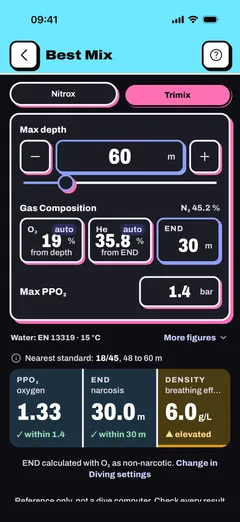
    Trimix: the best mix for depth, ppO₂ limit and END target, the nearest standard mix with the depth range it suits, and the gas specs at depth.

Free web calculator Guide: Best Mix

Gas Specs

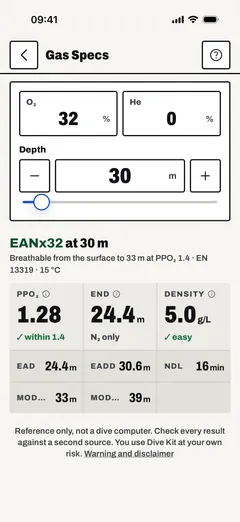
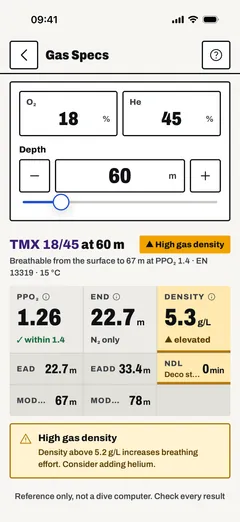
Enter a gas mix and a depth: Dive Kit shows PPO₂, EAD, END and gas density as you type, and flags values past the oxygen toxicity limit, the narcotic depth limit and the gas density limit.

  1. Gas Specs in the Dive Kit app, screen 1
    Set oxygen, helium and depth with the buttons, the slider or by typing.
  2. Gas Specs in the Dive Kit app, screen 2
    One card shows the rest: END, EAD, ppO₂, gas density, MOD at 1.4 and 1.6, and density-equivalent depth. Whether END counts oxygen as narcotic is a setting.

Free web calculator Guide: Gas Specs

Gas Blender

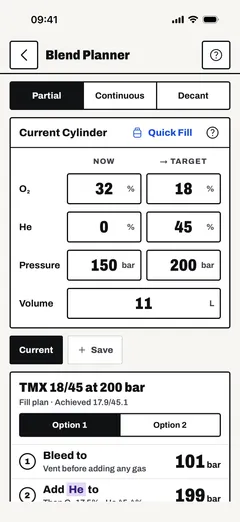
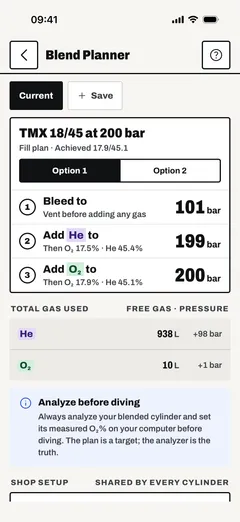
Set your altitude, ambient and fill temperatures, configure your banks (O₂, He, Air, with optional volume/pressure tracking), then save a named cylinder for every customer or buddy. Dive Kit returns a numbered fill plan: bleed, add He, add O₂, top with air, with the resulting mix and total gas drawn from each bank. For a mixing panel, Continuous mode computes the flow ratios for your rotameters and the readings to expect on the in-line analyzers.

  1. Gas Blender in the Dive Kit app, screen 1
    Partial pressure, continuous or decant. Enter the cylinder as it is now and the mix and pressure you want; the gas banks you blend from sit further down.
  2. Gas Blender in the Dive Kit app, screen 2
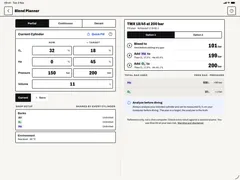
    The plan step by step: bleed, add helium, add oxygen, each with the pressure to stop at. When there is more than one way to the mix, the options sit side by side.
  3. Gas Blender in the Dive Kit app, screen 3
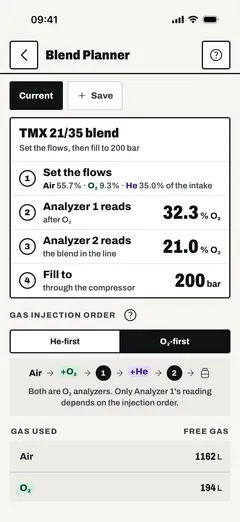
    Continuous blending: choose the injection order, and the app shows the blend to feed the compressor, the flow ratios and what each oxygen analyser should read.

Free web calculator Guide: Gas Blender

Mix Result

Set your starting cylinder (volume, current pressure, residual mix), then add gases one step at a time, O₂, He, Air, or any custom mix. Dive Kit shows the resulting O₂/He/N₂ at each step and the final mix at target pressure.

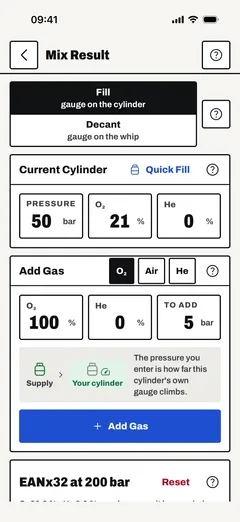
  1. Mix Result in the Dive Kit app, screen 1
    Fill from a supply or decant from another cylinder. Pressures are what your own cylinder's gauge reads, so you enter what you see.
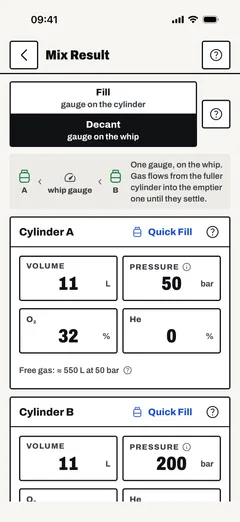
  2. Mix Result in the Dive Kit app, screen 2
    Decant: two cylinders on one whip gauge, each with its volume, pressure and mix. Gas flows from the fuller cylinder into the emptier one until they settle.

Free web calculator Guide: Mix Result

Gear

Buoyancy Calculator

A reference tool, not a substitute for a real-world weight check. Pick your water type (Fresh, Salt, EN13319, or Red Sea), cylinder configuration (Single, Twinset, or Sidemount), exposure protection, and gear, Dive Kit returns Start of Dive and End of Dive buoyancy, a breakdown by component, and an If Wing Fails what-if. Use it to compare the impact of changing one variable (a heavier cylinder, a different suit, an added stage) against your known-good setup.

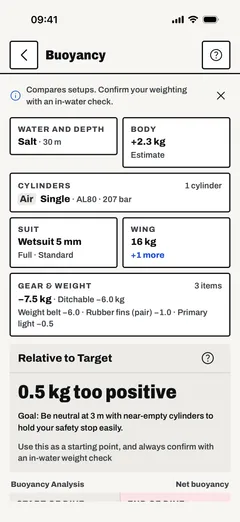
  1. Buoyancy Calculator in the Dive Kit app, screen 1
    Your setup as tiles: water and depth, body, cylinders, suit, wing, and gear and weight. Tap one to change it; the result against the target sits underneath.
  2. Buoyancy Calculator in the Dive Kit app, screen 2
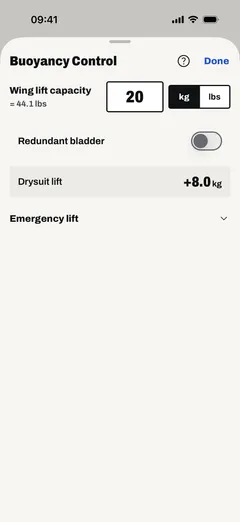
    The wing sheet: lift capacity, a redundant bladder and drysuit lift, which the what-if checks use.
  3. Buoyancy Calculator in the Dive Kit app, screen 3
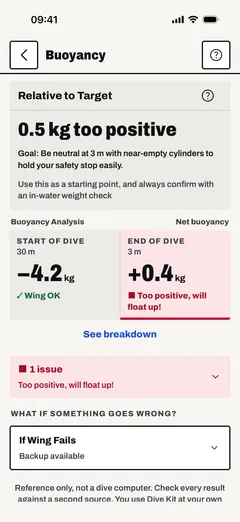
    The result against the target, neutral at 3 m with near-empty cylinders, then the start and end of the dive side by side, with any issue flagged.
  4. Buoyancy Calculator in the Dive Kit app, screen 4
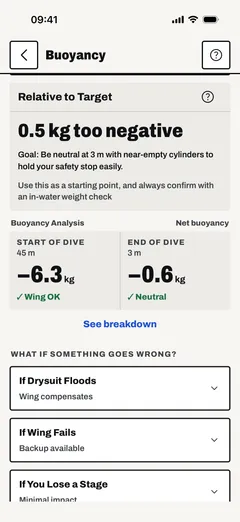
    What if something goes wrong: a flooded drysuit, a failed wing or a lost stage, each with what it does to your buoyancy.

Free web calculator Guide: Buoyancy Calculator

Cylinders

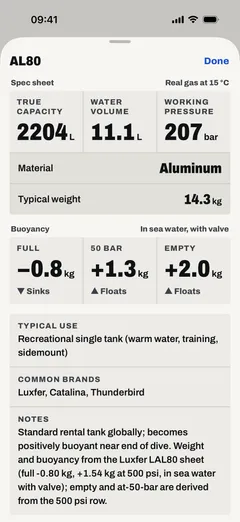
Browse aluminum and steel cylinders by name (AL80, LP104, S80…). Each entry shows water volume, working pressure, material, typical weight, and the buoyancy at full / 50 bar / empty, for choosing a cylinder for the dive.

  1. Cylinders in the Dive Kit app, screen 1
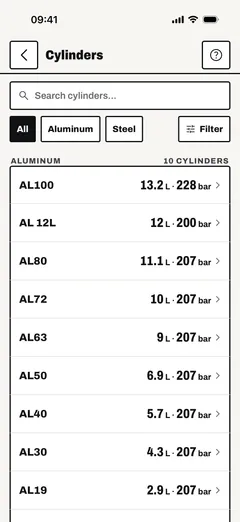
    Search the cylinder list, grouped by material, with water volume and working pressure on every row.
  2. Cylinders in the Dive Kit app, screen 2
    Open a cylinder for its gas capacity, weight and buoyancy when full, at 50 bar and empty, plus typical use and common brands.
  3. Cylinders in the Dive Kit app, screen 3
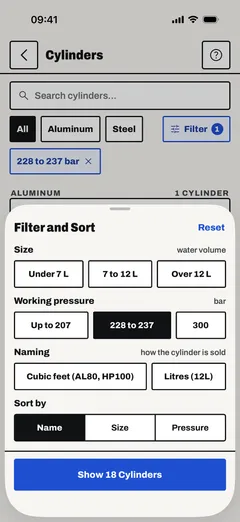
    Filter and sort the list by size, working pressure, how the cylinder is named and the order. An active filter shows as a chip above the list.

Free web calculator Guide: Cylinders

Unit Converter

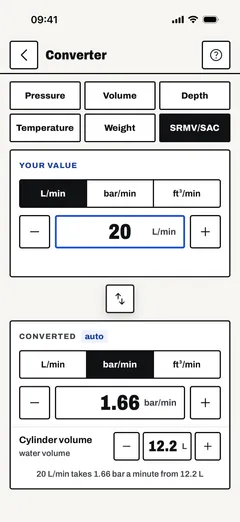
Six conversion modes: pressure, depth, volume, temperature, weight and RMV/SAC rate. Enter a value on either side and the other side updates. Tap to swap the units. Works offline.
  1. Unit Converter in the Dive Kit app, screen 1
    Pressure, volume, depth, temperature, weight and breathing rates, both ways. The buttons step the value up or down.
Free web calculator Guide: Unit Converter

On the boat

Checklists

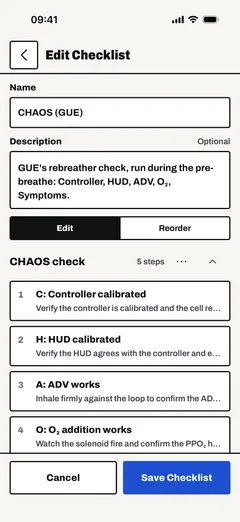
Run the buddy check, a rebreather build or the team check from your phone. Write your own checklists or start from 13 presets, among them BWRAF, JJ-CCR, FX CCR, GUE CHAOS and EDGE and TDI START. Steps can carry a countdown, a stopwatch or a notes field, and progress is saved as you go.

  1. Checklists in the Dive Kit app, screen 1
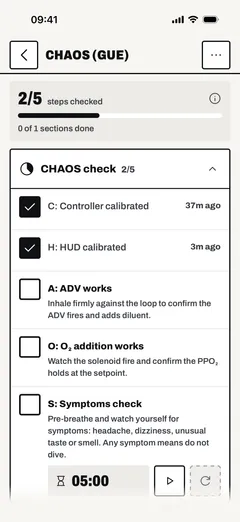
    The GUE CHAOS preset in use. Each checked step shows when you checked it, the bar at the top tracks progress, and a step can carry a timer.
  2. Checklists in the Dive Kit app, screen 2
    Edit any checklist or write your own: a name, a description, sections and steps. Reorder switches to dragging steps into place.

Scuba diving checklists → Guide: Checklists

Hand signals

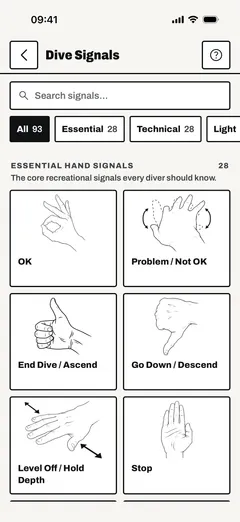
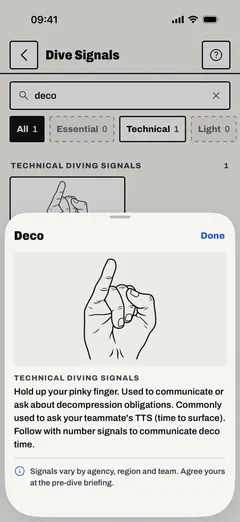
93 dive signals with drawings and meanings: essential and technical hand signals, light signals, touch signals for zero visibility and marine life signals. Searchable and offline. The drawings are open data that anyone can use with credit.

  1. Hand signals in the Dive Kit app, screen 1
    Signals grouped by category, each with its drawing. The search bar stays at the top and searches every category at once.
  2. Hand signals in the Dive Kit app, screen 2
    Tap a signal for a larger drawing and a description of how to make it and what it means.

All 93 scuba hand signals → Guide: Dive Signals

Certification cards

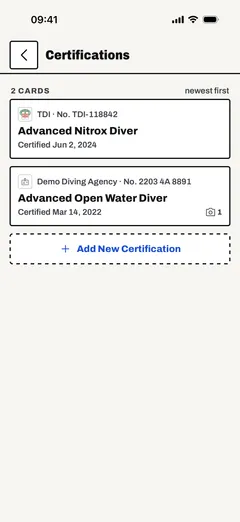
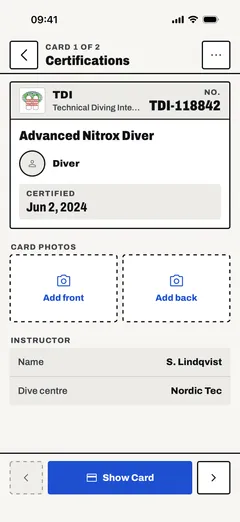
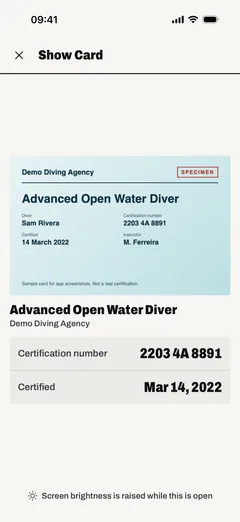
A card for each diving certification you hold: agency, course, certification number, dates, instructor, dive centre and photos of the card's front and back. Dive Kit knows 27 agencies and suggests their courses as you type. Show Card puts a card full screen for a dive centre. Cards stay on your phone and open offline, and a card that is about to expire is marked.

  1. Certification cards in the Dive Kit app, screen 1
    Your certifications as a list of cards, newest first: the agency logo, the course, your certification number and the date.
  2. Certification cards in the Dive Kit app, screen 2
    Open a card for its details, with the instructor and dive centre if you added them, and photos of the card's front and back. Arrows step between cards.
  3. Certification cards in the Dive Kit app, screen 3
    Show Card puts a certification full screen with its card photo, for a dive centre or a boat crew. The screen brightens while it is open.

Dive certification card wallet → Guide: Certifications

Your data

Backup and restore

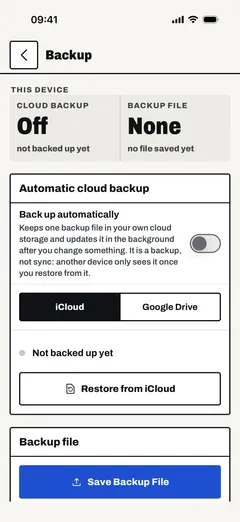
Dive Kit keeps everything on your phone and has no account. A backup is one file with your settings, profile, certifications, gear, saved deco plans and checklists. Save it anywhere through the share sheet, or switch on automatic backup and the app keeps it current in your own iCloud Drive (iPhone and iPad) or Google Drive (iPhone, iPad and Android).

A backup is a copy, not sync: restore it on a new phone to move your data. What Dive Kit can see in your Google Drive is set out in the privacy policy.

  1. Backup and restore in the Dive Kit app, screen 1
    Backup: automatic cloud backup to your own iCloud Drive or Google Drive, and a backup file you can save anywhere.

Guide: Backup and restore

Diver profile and insurance

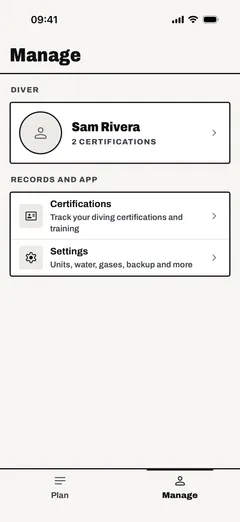
Your name, photo, date of birth and dive insurance in one place. Tap the insurance number to copy it onto a dive centre's form. The profile reminds you when the policy expires within 30 days, and again once it has expired.

  1. Diver profile and insurance in the Dive Kit app, screen 1
    The Manage tab: your profile card with your name, photo and certifications, then your records and the settings.

Guide: Profile

Units, gas presets and appearance

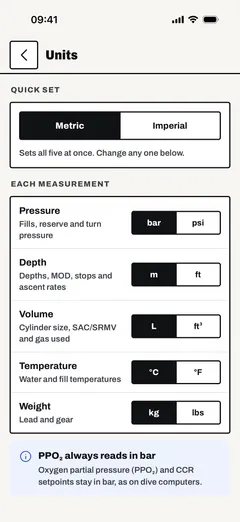
Set each unit on its own: bar or psi, metres or feet, litres or cubic feet, Celsius or Fahrenheit, kilograms or pounds. Every tool reads them, and so do your gas reserve rule and water density. Save your usual gas and cylinder pairs as presets and pull them into any tool with a tap.

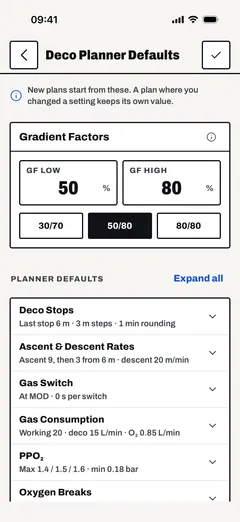
Deco Planner defaults set the gradient factors and planner settings every new plan starts from. Appearance holds the style and theme (below), the language, the decimal separator, haptic feedback and animations.

  1. Units, gas presets and appearance in the Dive Kit app, screen 1
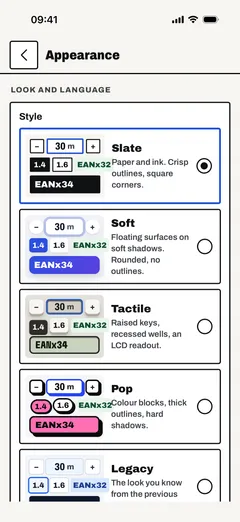
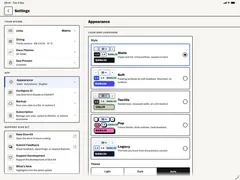
    Appearance: five styles for the whole app, Slate, Soft, Tactile, Pop and Legacy, the look of the previous version. The theme, language and app icon are on the same page.
  2. Units, gas presets and appearance in the Dive Kit app, screen 2
    Units: one switch sets all five to metric or imperial, then change any one on its own: bar or psi, metres or feet, litres or cubic feet, Celsius or Fahrenheit, kilograms or pounds.
  3. Units, gas presets and appearance in the Dive Kit app, screen 3
    Deco Planner defaults: the gradient factors and planner settings every new plan starts from. A plan where you changed a setting keeps its own value.
  4. Units, gas presets and appearance in the Dive Kit app, screen 4
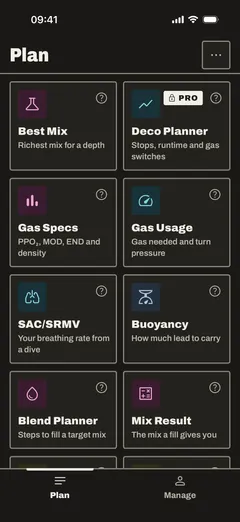
    The Plan screen, where every tool lives, in the dark theme.

Guide: Units and settings Guide: Gas presets

Styles and themes

Five styles change the look of the whole app without moving anything: Slate, the default, with square corners and ink outlines; Soft, with no outlines and soft shadows; Tactile, like a calculator, with keys and answers on a green LCD panel; Pop, loud and graphic; and Legacy, the look of the previous version. Each has a light and a dark version, and Auto follows your phone.

The app icon is a choice too: the new mark or the icon from the previous version.

  1. Styles and themes in the Dive Kit app, screen 1
    Slate, the default: square corners and strong ink outlines.
  2. Styles and themes in the Dive Kit app, screen 2
    Soft, in dark: no outlines, and keys and cards float on soft shadows.
  3. Styles and themes in the Dive Kit app, screen 3
    Tactile: flat keys on a solid side wall, and answers on a green LCD panel.
  4. Styles and themes in the Dive Kit app, screen 4
    Pop, in dark: thick outlines, hard shadows and a colour for every tool.

Guide: Units and settings

Works offline

Every calculator and the Deco Planner run on the phone, and your data is stored there, so the app works the same on a boat with no signal as at home. Only buying a subscription, opening a shared plan in a browser, app updates and the automatic cloud backup need a connection.

Guide: Offline use

Phones and tablets, in 8 languages

Dive Kit runs on iPhone and iPad and on Android. In English, German, Polish, Russian, Swedish, Turkish, Simplified Chinese and Korean, following your phone's language or the one you pick, with the decimal separator to match.

  1. Phones and tablets, in 8 languages in the Dive Kit app, screen 1
    On an iPad in landscape, Settings opens beside its list.
  2. Phones and tablets, in 8 languages in the Dive Kit app, screen 2
    Tools use the width of a tablet: the Blend Planner's inputs and its plan side by side.

Guide: Getting started

Dive Kit for iOS and Android.

The Deco Planner is the one paid feature. Everything else in the app is free.

Download on the App StoreGet it on Google Play